

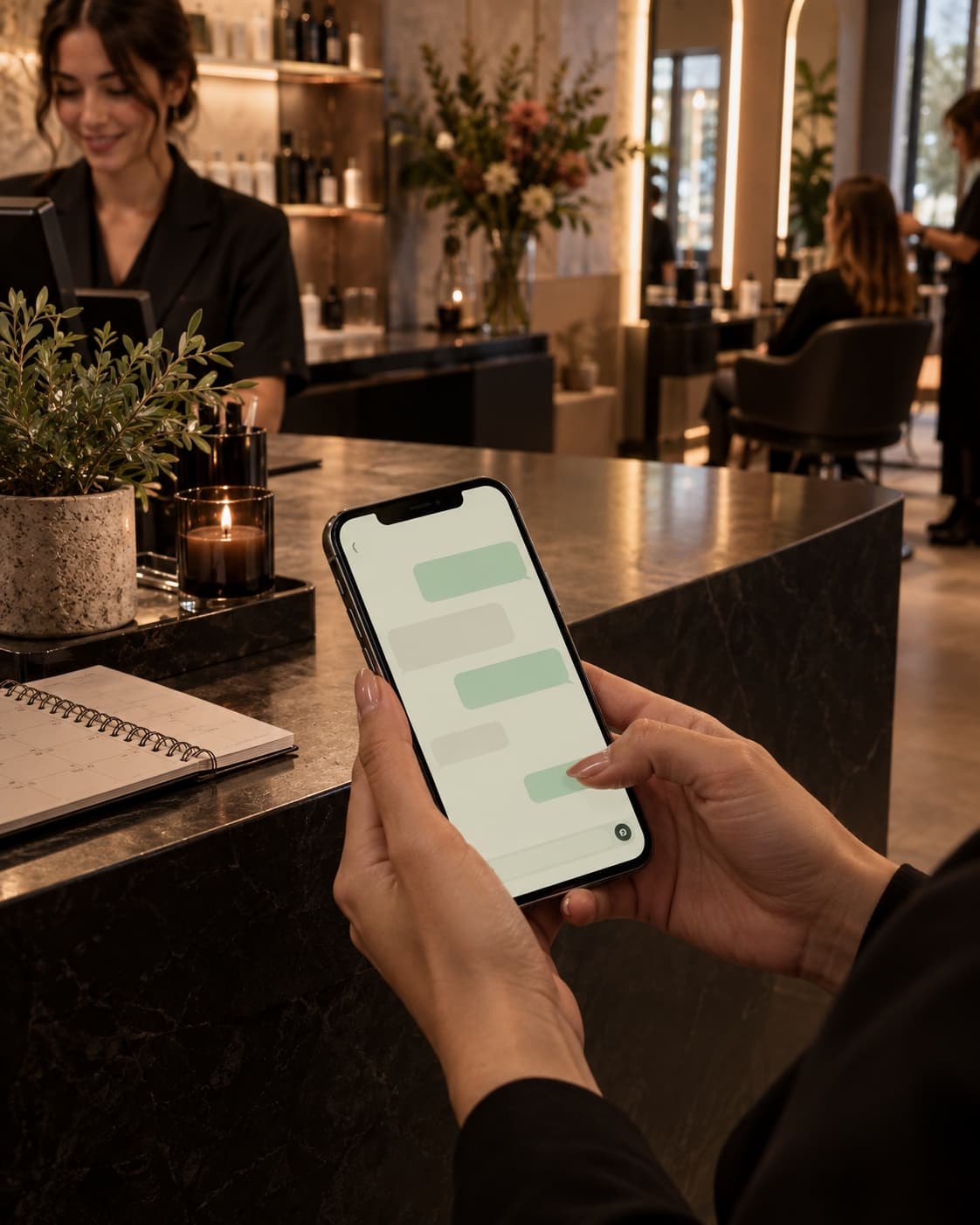
To automate WhatsApp bookings, you need to connect the conversation with the calendar your team uses. The system collects the service and the date, checks availability, saves the appointment, and sends the confirmation. It also has to know what to do when someone changes their mind, a slot gets taken, or the connection fails.
The confirmation should go out after the booking has been recorded. That order is what makes the difference between getting requests and managing complete appointments.
Here you have an example flow and the checks it’s worth asking for before you launch it.
What you need to connect
Start with three pieces: the WhatsApp channel, the calendar, and your business booking rules. The solution can take different forms:
- A booking link sent by WhatsApp. This works if you already have a page where the customer can choose the service and time, and you just need to make access easier.
- A form inside WhatsApp. This lets you guide the choice with options. Meta offers WhatsApp Flows to create this kind of experience, including appointment bookings.
- A conversation with AI connected to the calendar. It can help interpret requests like “I want the same service as last time, but in the afternoon.” You need to check identity, service, and availability before making the booking.
The choice depends on how your customers ask and on the connections available. A service with two options can be solved with guided selection. A calendar with multiple locations, professionals, and durations needs more rules.
Also define who will handle conversations that need a person. That inbox should show what the customer asked for and which steps have already been completed.
Example: from a message to a confirmed appointment
Imagine a salon that offers a 45-minute service and reserves another 15 minutes to prepare the station. This is an illustrative example, not a real client case or a promise of results.
The journey could be designed like this:
| Moment | What should happen |
|---|---|
| The customer writes “Do you have anything on Thursday afternoon?” | Ask which service they need and confirm the exact date. |
| They choose the service and professional | Check availability by accounting for duration, prep time, and working hours. |
| They get two options and pick 6:00 p.m. | Validate that slot again and record the appointment in the calendar. |
| The calendar confirms it was saved | Send the date, time, service, location, and an easy way to reschedule or cancel. |
| The reminder time comes | Check that the appointment is still active and that the message can be sent through the configured channel. |
| The customer asks for a different time | Check alternatives and complete the change without leaving two active appointments. |
The final message could be: “Your appointment is confirmed for Thursday, October 22 at 6:00 p.m., for [service], at [address]. You can request a change or cancel from here.” It’s an example template: the details should come from the saved booking.
If the system doesn’t respond, the flow should leave the operation pending and alert the team. Before trying again, you need to check whether the appointment was actually created.
How to sync the calendar and avoid double bookings
All channels must check the same availability. If the team writes calls down on paper and WhatsApp checks a different calendar, the problem is still there.
Decide which system is the source of truth and how bookings made by phone, on the website, or at reception are added. Also define:
- Duration of each service and prep time.
- Professionals, rooms, or equipment each appointment needs.
- Breaks, holidays, vacations, and special hours.
- Minimum notice to book and conditions for changes.
- The business time zone and how it’s shown to the customer.
For example, Google Calendar has operations to check busy periods and create events. These are two different steps. The integration must add the business rules and coordinate requests that arrive at the same time.
Ask for a concrete test: two people try to book the last slot at the same time. The system must assign it to only one and offer another option to the second person. Checking the calendar a few seconds earlier doesn’t solve that conflict on its own.
It’s also worth distinguishing between “appointment saved” and “confirmation delivered.” If the booking exists but the message fails, the team needs to see it as pending notification, without creating it again.
Reminders, changes, and human support
A reminder only makes sense if it reflects the current status of the appointment. If a booking is canceled or moved, you need to update any pending alerts so the customer doesn’t receive the old time.
In WhatsApp Business Platform, the current policy allows you to reply without a template within 24 hours after the user’s last message. Outside that window, messages require approved templates. It also requires consent for follow-up contacts, respect for opt-outs, and clear support paths when automation is used. Check these conditions in the WhatsApp Business messaging policy.
In practice, prepare the reminders before launch, collect the customer’s preference, and offer a clear way to ask for help. Someone who books today for two weeks from now may need a reminder outside that window.
When the team takes over a conversation, the assistant should stop sending automatic replies until control is handed back. That way you avoid a person offering one time while the system confirms another.
The tests you should ask for before turning it on
A useful demo includes normal situations and cases that should stop. Check at least these:
- Ambiguous date: someone writes “next Friday.” The assistant shows the exact date before moving on.
- Repeated message: the same request arrives twice. Only one booking is kept.
- Change from reception: the team moves an appointment. The conversation and reminders reflect the new status.
- Calendar failure: the connection drops while saving. The result is checked before repeating the operation.
- Cancellation: the correct resource is freed and the alerts for that appointment stop.
- Special request: the customer asks for a service that doesn’t fit the options. The conversation is passed to the team with context.
If you need to collect a deposit, also test what happens when the payment is pending or the deadline expires. The appointment must follow the rules agreed for that state; a message saying “I’ve already paid” is not enough to confirm payment.
How to start with a reasonable scope
A first pilot can cover one service, one location, and one group of professionals. Choose a journey that includes booking, modification, and cancellation: that way you can check the full cycle.
Measure how many requests end in an appointment, how many need intervention, and how much time the team spends resolving them. Also review duplicates, failed messages, and pending bookings. These are data you’ll need to collect; there’s no savings percentage you can assume in advance.
If it still isn’t clear which process should come first, start with our guide to choosing what to automate in a business.
To prepare a proposal, gather the name of the current calendar, the services and their durations, who can handle them, and how you manage changes today. At Digency, we design custom AI automations connected to your business tools. Tell us how you receive bookings and we’ll define the first flow and its checks.
Cover: illustration generated with AI.